The complete guide
Everything you can do with your voice.
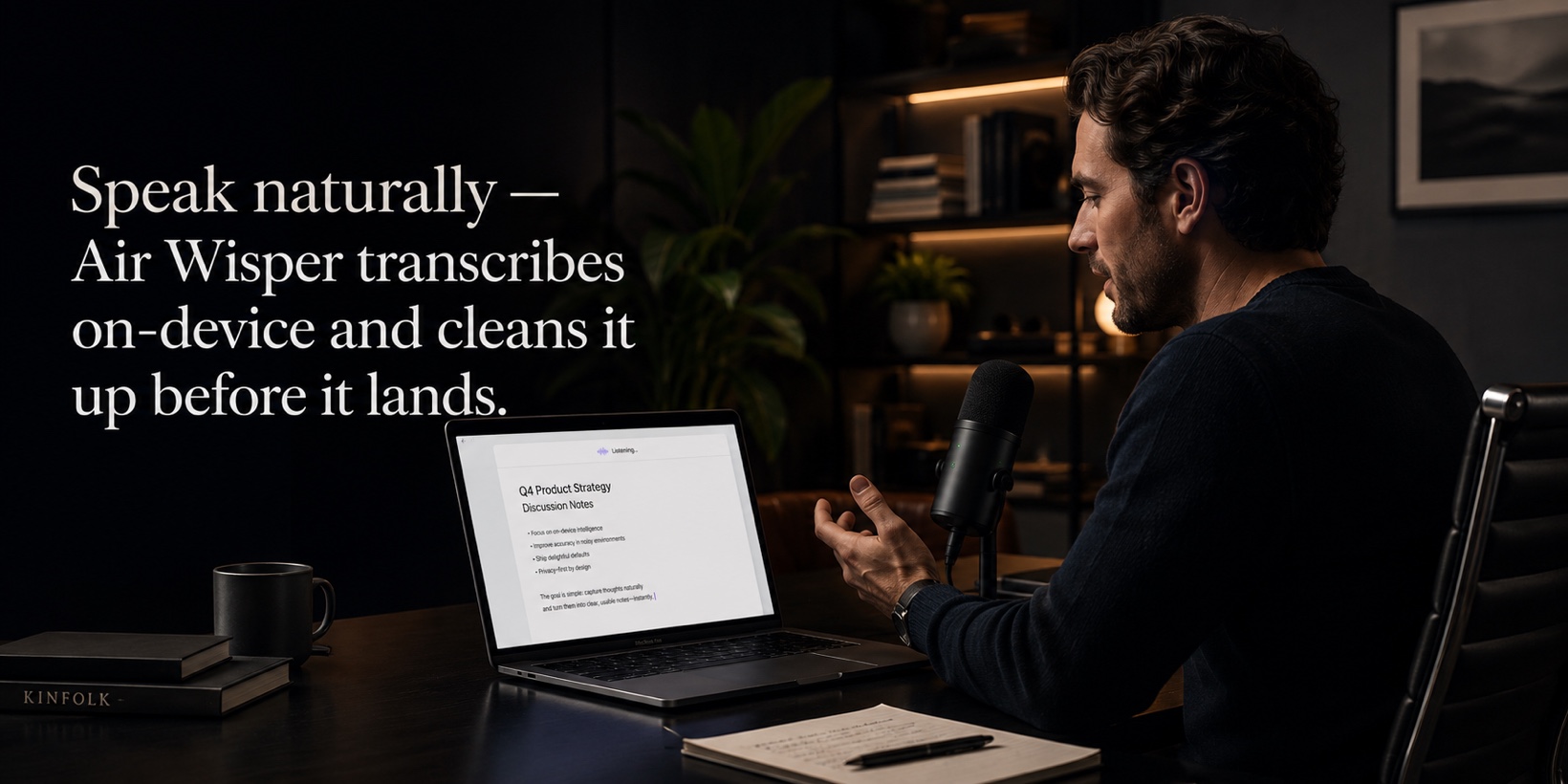
You can be set up in under a minute. Hold a key, speak, release. Your words land as clean, polished text in any app.
The complete guide
You can be set up in under a minute. Hold a key, speak, release. Your words land as clean, polished text in any app.
On this page
Set up in a minute
Air Wisper lives in your menu bar — there’s no window to manage. Three quick steps and you’re dictating into any app.
Click the icon to reach Settings or History at any time.
Microphone, Accessibility and Speech Recognition. You’re looking for three green checkmarks.
Hold ⌥D, say what you mean, release. The polished text is typed where your cursor is.
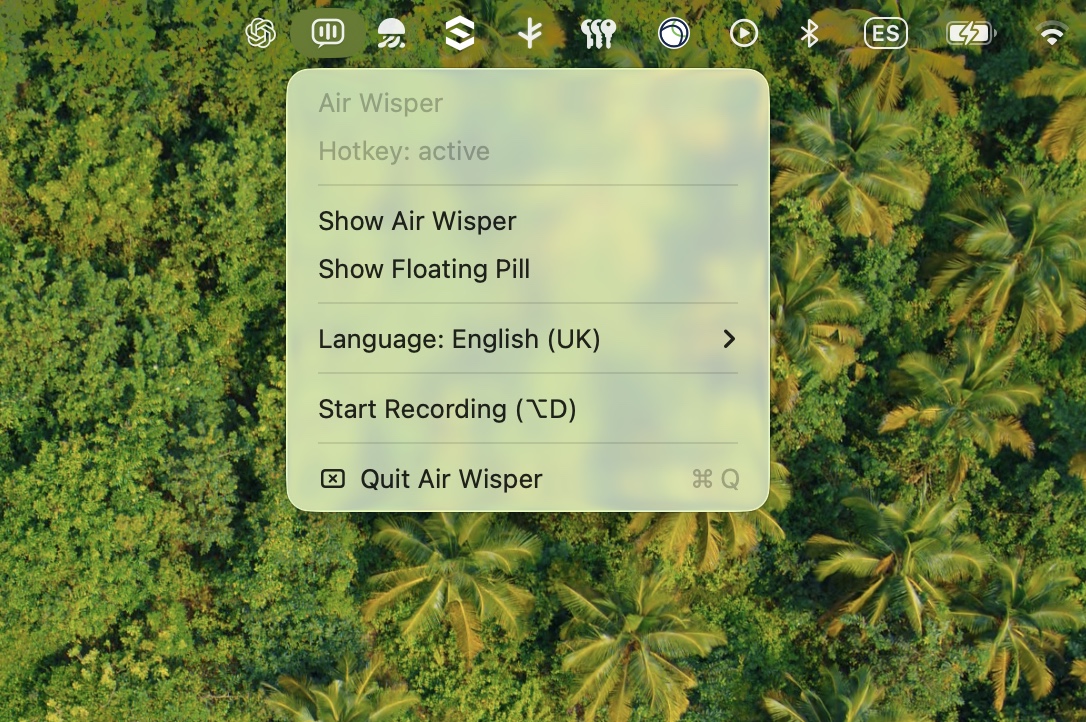
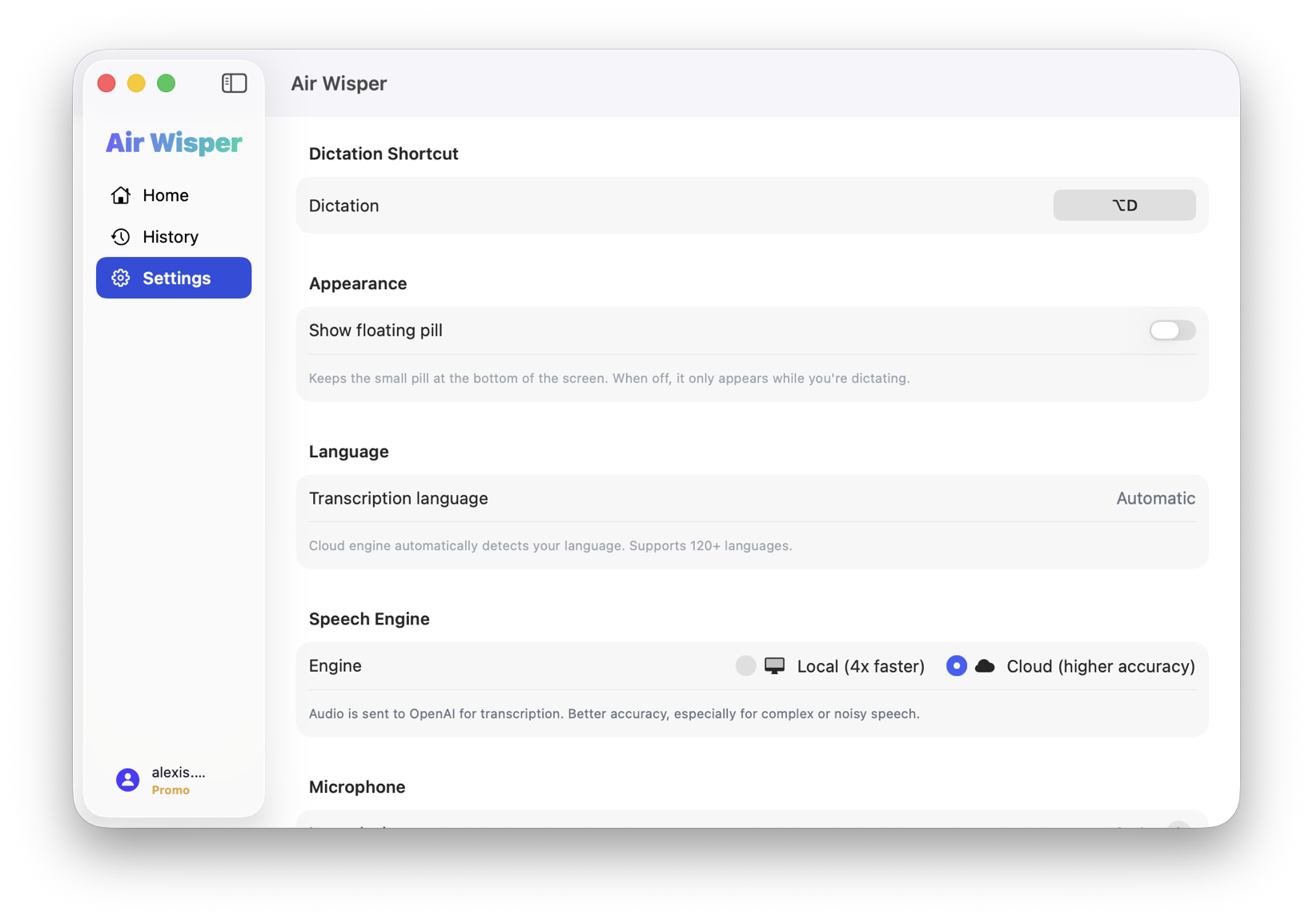
First time? In Settings, make sure Microphone, Accessibility, and Speech Recognition are all granted. Accessibility is the one that lets Air Wisper type into the app you’re already in.
Voice to text
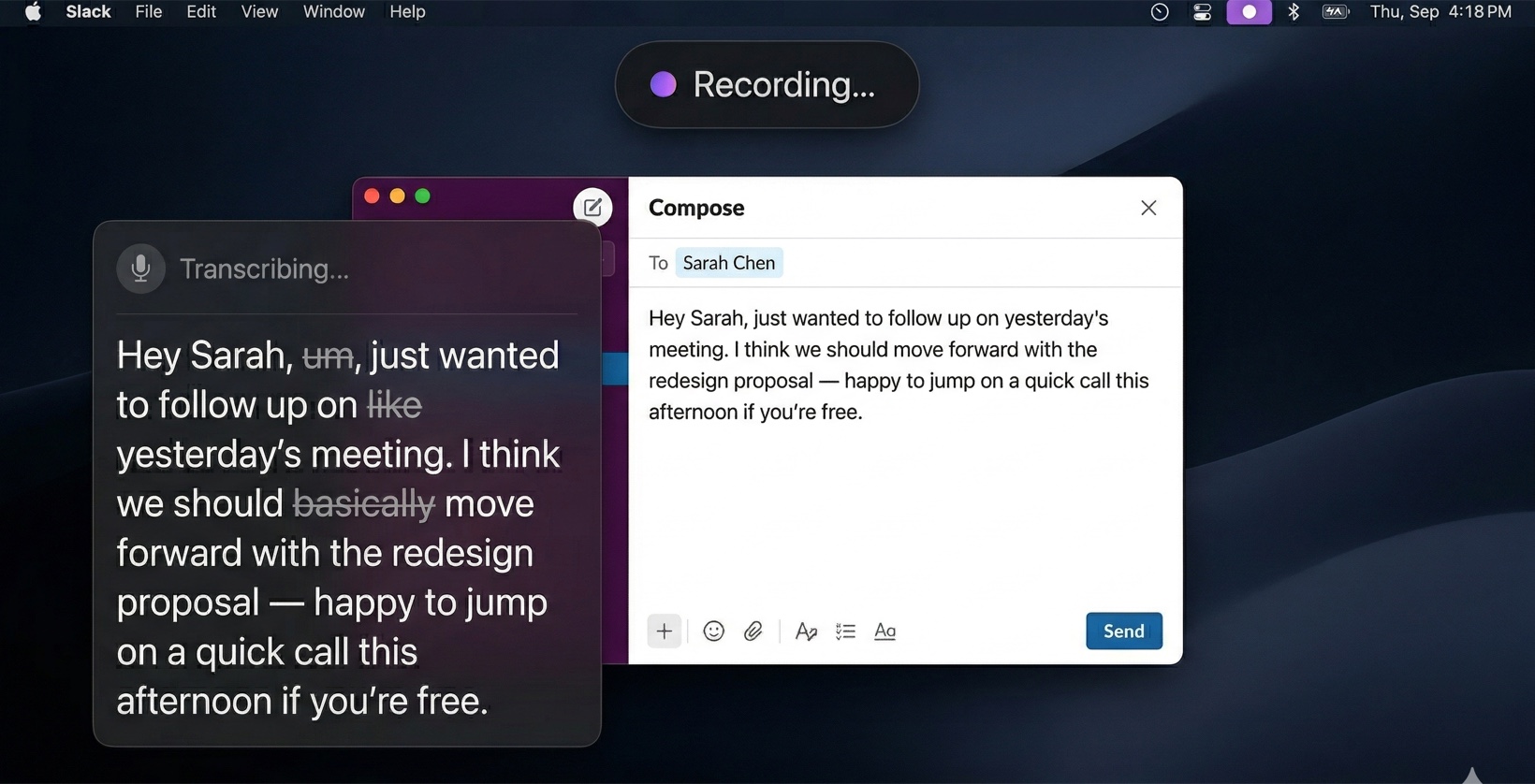
Hold ⌥D, speak naturally, release. Your speech is transcribed on-device, cleaned up by AI — grammar, punctuation, filler words — and typed into the active app.
Free and private. It works with no network at all.
Grammar, punctuation and filler words. Only the transcript is sent — never the audio.
Straight into the active app, wherever your cursor already is.
What you say
hey sarah um just wanted to follow up on like yesterday’s meeting i think we should basically move forward with the redesign
What gets typed
Hey Sarah, just wanted to follow up on yesterday’s meeting. I think we should move forward with the redesign.
Works everywhere. Slack, Mail, Notion, VS Code, your browser, any text field. No copy-paste needed — text appears right where your cursor is.
Inspiration
Dictation shines when you’re writing long-form, replying to messages, or polishing prose without breaking flow.

Talk through a paragraph instead of typing it. The cleanup pass handles grammar and punctuation, so the draft arrives readable.
Hold ⌥D and say the paragraph you were about to write.
Reply to Slack, iMessage or email at speaking speed. Air Wisper cleans up the grammar and punctuation as you go.
“hey can you take a look at the latest pr when you get a chance” → cleaned and typed
Brain-dump into Notion, Apple Notes or your editor. Dictate raw thoughts and let Air Wisper turn them into readable text.
Open your notes app, hold ⌥D, talk through what’s on your mind.
Write commit messages, README sections and inline comments by voice. Faster than typing, especially for long explanations.
Dictate a commit message describing what you just changed.
Pro tips
You don’t need robotic phrasing. Just talk — Air Wisper cleans up filler words and punctuation for you.
Local is the default: faster to start and fully private. Cloud is more accurate for difficult audio. Switch in Settings depending on what you need.
Don’t like ⌥D? Set it to any combination in Settings › Shortcuts.
More from the blog
See how people put voice-to-text to work day to day.
Code comments, commit messages, docs, Slack, AI prompts and rubber-duck debugging — all by voice.
Read → PersonalSeven days of dictating everything — emails, Slack, code comments, notes. Here’s what surprised me.
Read →Free plan, no card · macOS 14+ · Apple silicon & Intel